Cleaning Business Card Maker
Fill in your details, pick a layout and color, and print a sheet of cards.
Recent
Your last 10 settings, saved only in this browser. Nothing is uploaded.
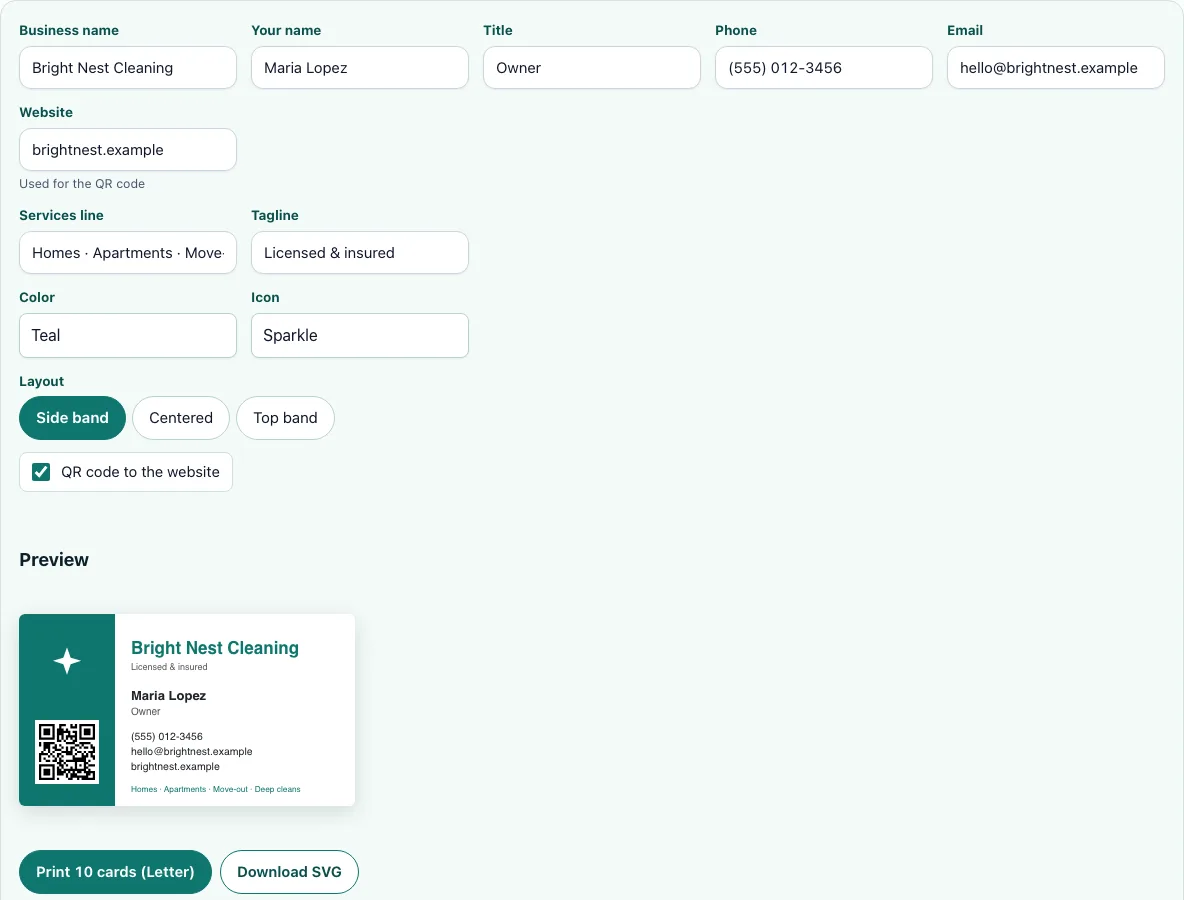
This free cleaning business card maker lets you design a 3.5 x 2 inch card for your cleaning service in your browser. Fill in your business name, your name and title, your phone, email and website, then write a services line that names what you clean. The preview updates as you type, so you can see the card take shape before you print it.
You can pick one of six colors, one of three icons (or no icon), and one of three layouts. If you want customers to scan a code and reach your site, tick the “QR code to the website” box and the code is made from the website address you entered. When the card looks right, print 10 cards on one US Letter sheet or download an SVG file for a print shop.
Your details are kept in this browser only. Nothing is uploaded, and no account is needed.
How to use the cleaning business card maker
- Type your Business name, Your name, and Title (for example, “Owner” or “Lead Cleaner”).
- Add your Phone and Email.
- Enter your Website. This address is used for the QR code.
- Write a Services line that names what you clean, such as “Home, move-out, and office cleaning.”
- Add an optional Tagline for a short line about your promise.
- Pick a Color: Teal, Navy, Green, Plum, Coral, or Black.
- Choose an Icon: Sparkle, Drop, House, or No icon.
- Choose a Layout: Side band, Centered, or Top band.
- Tick the “QR code to the website” box if you want a code on the card.
- Check the preview, which updates as you type, then click “Print 10 cards (Letter)” or “Download SVG”.
Read the preview as a customer would. The phone number and the services line matter most, so check that both are easy to find. If the services line runs long, shorten it and look at the preview again.
For a home printer, use “Print 10 cards (Letter)”. Set the print scale to 100% or “Actual size” in your print dialog so each card keeps its 3.5 x 2 inch size.
Use “Download SVG” when you want a print shop to produce the cards. An SVG is a vector file, so the shop can scale it without losing sharpness.
What should be on a cleaning business card?
A cleaning business card should show who you are, how to reach you, and what you clean. Customers need your business name, a phone number, and a services line so they know you handle the job they need. Your name and title tell a homeowner or property manager who they are dealing with.
Keep the services line specific. “Home, move-out, and office cleaning” tells a reader more than “Cleaning services,” and it gives them a reason to keep the card. The tagline is optional, so use it only if it says something real about your work, such as how quickly you reply.
How do I print business cards at home?
Print on US Letter paper with the print scale set to 100% or “Actual size,” so the cards keep their 3.5 x 2 inch size. A scale other than 100% makes every card a different size, and the cards may not fit a card holder. Use “Print 10 cards (Letter)” to fill one sheet with 10 cards.
Card stock is thicker than printer paper and holds its shape better, which makes it a better choice for cards you hand out. Test one sheet on plain paper first, then print on card stock once the spacing and the color look right. Cut with a paper cutter if you have one, because straight, clean edges make the card look more professional than edges cut by hand.
Should a business card have a QR code?
A QR code helps when you want people to reach your website quickly, since a phone camera can read it without typing a web address. It takes up space, so it works best on a card that still has a clear name, phone number, and services line. Tick the “QR code to the website” box only if your website is ready for visitors who scan it.
The code is built from the Website you enter in the form. Check that the address is spelled correctly and opens the right page before you print a stack of cards.
What size is a business card?
The standard size for a business card in the US is 3.5 x 2 inches. This tool uses that size, so your card fits standard card holders and wallets. A card cut to a different size may not fit those holders as neatly.
The Letter sheet holds 10 cards of this size at a 100% print scale. If you set the scale to fit the page, the cards grow or shrink, and the size you planned no longer matches.
Is the card design free to use?
The tool is free and needs no sign-up, so you can make as many versions as you like. The QR code is generated in your browser with the open-source qrcode-generator library, which is MIT licensed. “QR Code” is a registered trademark of DENSO WAVE, so use the words “QR code” in your own text and avoid the mark in a business name.
Frequently asked questions
Do I need to create an account?
No. The tool is free and does not require sign-up. Open the page, fill in your details, and print or download your card.
Is my information uploaded anywhere?
No. Your details are kept in your browser only, and nothing is uploaded. If you clear your browser data, you will need to type your details again.
Why does the print button give me 10 cards?
“Print 10 cards (Letter)” fills one US Letter sheet with 10 cards at 3.5 x 2 inches. Cut them apart with a paper cutter for clean edges. If you only need a few, keep the rest of the sheet for later.
Can a print shop use the file?
Yes. Click “Download SVG” to save the card as a vector file. A print shop can scale it to their needs without losing sharpness.
Can I add my logo to the card?
Not yet. Adding your logo to the card is coming soon, so it is not available in this version. Until then, the card is made from the text you type. Your card uses the name, contact details, and colors you enter.
Can I change the card after I print it?
Yes. Your details stay in this browser, so you can open the page again, change a line, and print a new sheet. The same applies when you return on the same browser later. Reprint the whole sheet when you change the phone number, email, or website, so every card you hand out is current. Cards you already gave out will still show the old details.
Related tools
- Cleaning business names: Use this when you are still choosing a name to put on your card.
- How to start a cleaning business: Read this for the steps to take before you start taking clients.
- Cleaning estimate template: Use this to write up a price for a job before the client agrees to it.
- Cleaning invoice template: Use this to bill clients after the work is finished.
- Cleaning business plan: Use this to plan your costs, services, and goals.
- How much to charge for house cleaning: Use this to set your rates before you print prices or quote jobs.