Cleaning Invoice Template
Fill in your cleaning invoice and print it or save it as a PDF.
Recent
Your last 10 settings, saved only in this browser. Nothing is uploaded.
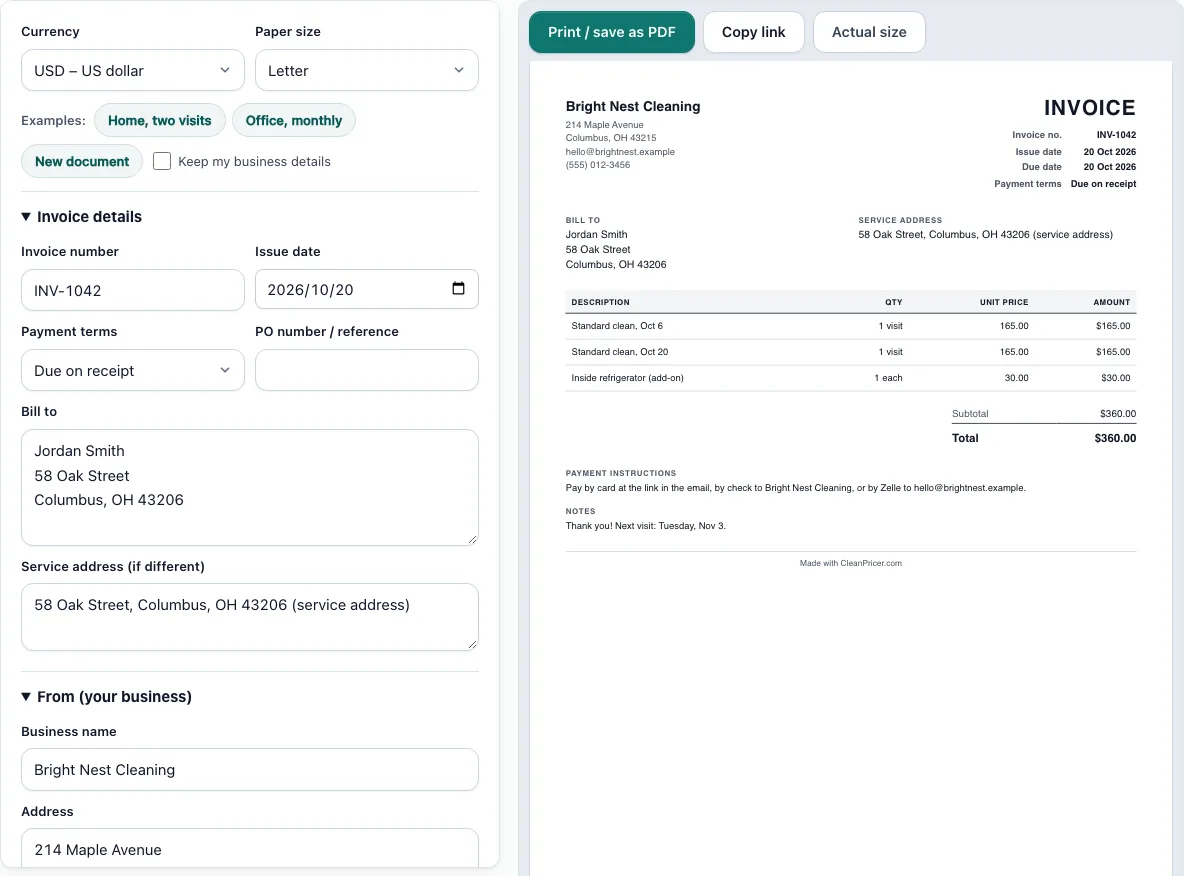
This free cleaning invoice template lets you bill a client for cleaning work in your browser, with no sign-up. Fill in the form on the left and check the live paper preview on the right, set to US Letter or A4. The invoice works for a single clean, a run of home visits, or a monthly office contract, and it can be used as a cleaning service invoice template for any of them.
Each service goes on its own line with a quantity, a unit price, and an optional discount. The payment terms set the due date, and an “Amount already paid” box shows the balance still owed. A “How the totals were calculated” list shows every step of the arithmetic, so you can check the total before you send it.
Everything you type is saved in your browser as you go, and nothing is uploaded.
How to use the Cleaning Invoice Template
- Pick Letter or A4 from the paper size control, then choose your currency from the Currency select.
- Enter the invoice number and the issue date.
- Choose payment terms: Due on receipt, Net 7, 15, 30, 45, 60, or 90, or pick a due date.
- Add a PO number or reference if your client uses one.
- Fill in Bill to, and add a Service address if the work is done somewhere else.
- Enter your business details and tax ID. Optionally add a logo (PNG, JPG, or SVG, up to 300 KB).
- In the items section, enter a Description, Qty, Unit, and Unit price for each service. Add a Disc. % if a line is discounted.
- Set the tax: none, one rate, or a rate per item (where you enter Tax % on each line).
- Set a document discount as a percentage or a fixed amount, if needed.
- Enter any Amount already paid to show the balance due.
- Add Payment instructions and Notes, then check the “How the totals were calculated” list before you send the invoice.
The preview shows the due date and the balance due, so read those two lines first. For the printed copy, use “Print / save as PDF”, which prints just the invoice.
Use “Keep my business details” when you start a new invoice, so your name, address, and tax ID stay filled in.
What should a cleaning invoice include?
A cleaning invoice should show your business name and contact details, a unique invoice number, and the issue date. It should list each service with its quantity and price, the tax and any discount, and the total. It should also state the due date and how the client can pay.
The Bill to field and the Service address field tell the client exactly who is being billed and where the work was done. Add a PO number or reference when the client needs one to match the payment to their records.
How do I make an invoice for cleaning services?
Start with the invoice number and issue date, then add the client. Enter each visit or service as its own line, so the client can match each charge to a visit. Use the Notes field for anything the client should know, such as a change to the schedule.
Set the payment terms before you finish, because they set the due date. A home invoice for two visits might be due on receipt, while a monthly office invoice usually uses a net term such as net 30. Check the preview, then print or save the PDF.
When should I send a cleaning invoice?
Send the invoice after the work is finished, or on the schedule you agreed with the client. For a recurring contract, that often means one invoice per billing period. The payment terms tell the client when the money is due, so the date you send it and the date it is due should match the terms you agreed.
A quick invoice helps the client pay on time. Include the invoice number on every message about the payment so the client can find it.
Do I charge sales tax on cleaning services?
It depends on the state. Sales tax on cleaning services varies from state to state, so check with your state revenue department before you set the rate. The template applies whatever tax you enter, either one rate for the whole invoice or a rate on each line.
Office example: a monthly cleaning of $1,350 with $84.60 of consumables, net 30, and 7.5% sales tax. The 7.5% rate is an example in the template, not a rule for your state, so use the rate that applies where you work.
How do I show a deposit or partial payment?
Enter the amount the client has already paid in the Amount already paid box. The invoice then shows the balance due, so the client sees what is still owed. The total stays the full price, and the balance due line shows what remains.
Use the Payment instructions field to tell the client how to pay the balance. Keep a PDF of each version you send, so you can show the payment history later.
Frequently asked questions
Is this cleaning invoice template free to use?
Yes. The template is free and needs no sign-up, so you can make as many invoices as you like. Open the page, fill in the form, and print or save the invoice as a PDF.
Is my invoice data uploaded anywhere?
No. Your business details, client details, and line items are saved in your browser only, and nothing is uploaded. If you clear your browser data, the saved invoice is removed from that browser, so keep a PDF copy of every invoice you send.
Can I add my business logo?
Yes. Upload a PNG, JPG, or SVG file of up to 300 KB. The logo is kept in this browser only and is not uploaded.
Will the printed invoice include a footer?
Yes. The printed page carries a small line that says “Made with CleanPricer.com”. A note on the page says that removing the footer line is coming soon, so it is not available yet.
Can I use the Home and Office examples as a starting point?
Yes. Each example loads with one click. The examples show a home invoice with two visits, due on receipt, and an office invoice billed monthly with net 30 terms. Replace the descriptions, quantities, and prices with your own before you send it.
Can I give a discount on one service only?
Yes. Each line has its own Disc. % box, so you can discount one service and leave the others at full price. The document discount applies to the whole invoice instead, so use the line box for a single service.
Related tools
- Cleaning estimate template: Use it to quote a job before the work starts, then turn the agreed price into an invoice.
- Cleaning contract template: Use it to set out the terms of a recurring or long-term cleaning arrangement.
- House cleaning estimate calculator: Use it to work out a price for a house clean before you write the quote.
- How much to charge for house cleaning: Use it when you are deciding on rates for your cleaning service.
- Cleaning proposal template: Use it to present your services and pricing to a potential client before they hire you.
- Airbnb cleaning fee calculator: Use it to work out a cleaning fee for short-term rental turnovers.